
gBrowser
A free, simple, and powerful image browser
No opaque library hiding your photos.
No catalogs, no import process.
Just browse your folders and images. Instantly.

Download Now
gBrowser version 3.1 beta 10
macOS 12.4 or later
release notes
Older computer?
Last version for 11.0
Last version for 10.13+
Older than that?
Full archives here
Beautiful and Flexible
Supports light mode, dark mode, custom background colors, and a number of layout styles.


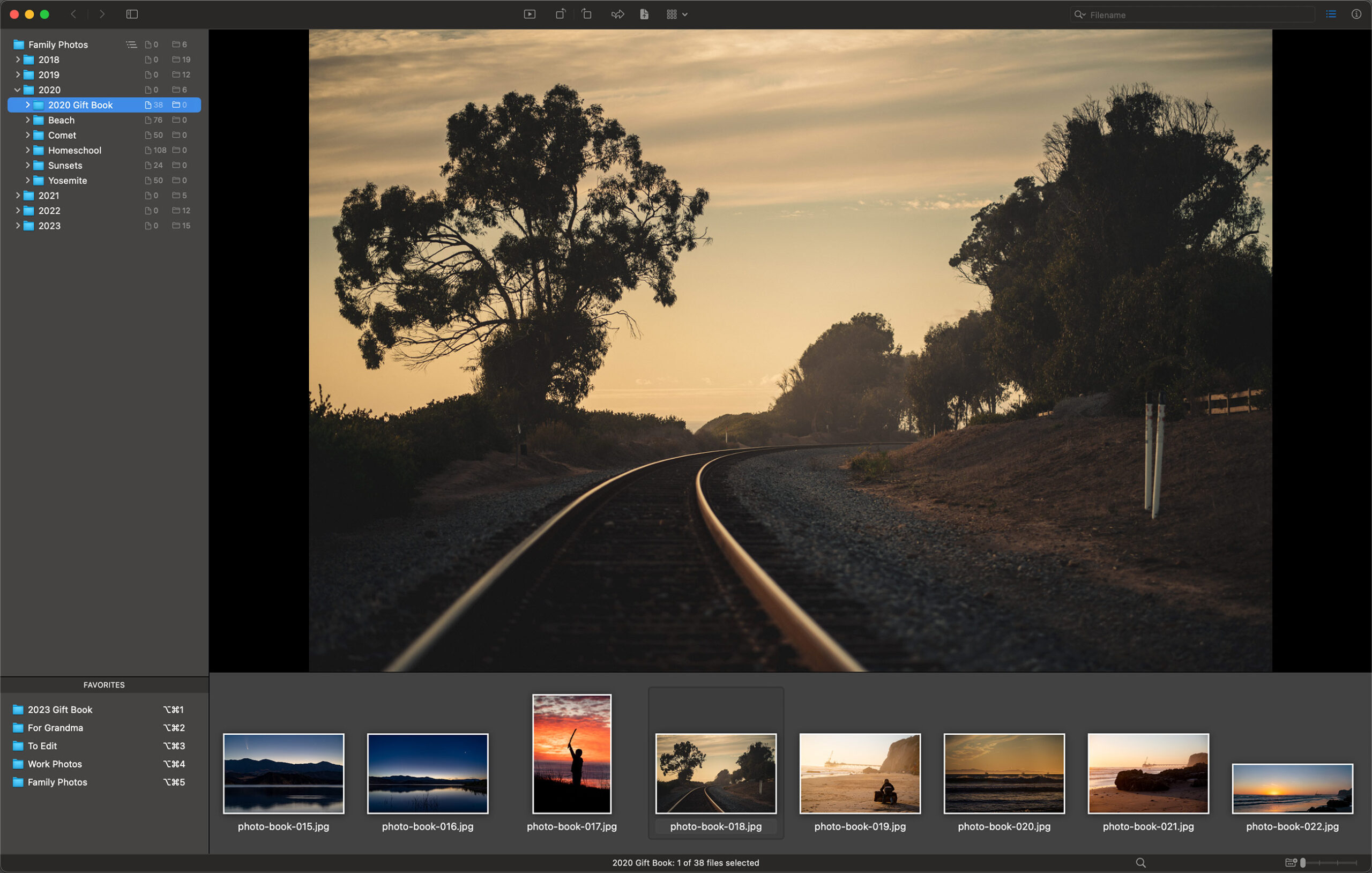


Files and Folders
View your folders and images without opaque libraries or a long import process. Just open gBrowser and go.
Easy Organizing
Quickly sort though, select, and move your photos. Favorites create an always-accessible drop zone and hotkeys for quick organizing.
Custom Hotkeys
Define custom hotkeys for nearly every menu item and action.
Quick View
Enable a quick preview pane alongside your thumbnails to show you the currently selected image, or press the escape key to open the Quick View window in full screen. Quick View is great for dual-monitor setups!
Image Information
View image details (including EXIF and GPS) in the thumbnail pane inspector. Sort thumbnails by various attributes.
GPS Map
If your images have GPS data, view their locations on a map.
Batch Rename
Powerful and fast batch rename functionality lets you filter, sort, and then rename files however you want, including regular expression support.
Slideshows
View your images and videos in slideshow mode, with keyboard controls (including scroll and zoom) and custom autoplay durations.
About gBrowser
gBrowser is an image browser and organizer with no databases or hidden libraries. What you see in the Finder is what you see in gBrowser - except gBrowser presents you with large, beautiful thumbnails and gives you the tools to easily view and organize your images.
It includes a thumbnail browser, Favorites, and file flagging tools to make sorting out and moving your images a snap; a powerful batch rename function with the ability to save presets; a Quick View window which works much like Quicklook on single monitors, but is even more useful when opened permanently on a secondary monitor; and more.
Eases image sorting
If you need to sort the good from the bad after a photo shoot, gBrowser will let you quickly and easily mark which images you want to pull out, and Favorites let you create a set of folders to quickly move or copy your selections into.
Powerful batch rename
gBrowser's batch renamer will let you rename tens, hundreds, or thousands of files at once (even deep folder heirarchies). Add sequential numbers, dates, parent or grandparent folder names, or more to your filenames. Full regular expression support makes it even more powerful. Its filtering abilities will ensure you rename only the files you want to rename, and sorting ensures your sequential numbers are in the order you want.
Loves multiple monitors
In addition to being able to open your images one at a time the old-fashioned way, gBrowser's Quick View window can open in full screen on any of your monitors. As you browse your thumbnails on one screen, the other screen will instantly show your selections in full glory. If you don't have multiple monitors, the Quick View is still useful - it can be instantly opened or closed with escape key to take a detailed look at your selected image.